> ## Documentation Index
> Fetch the complete documentation index at: https://docs.matia.io/llms.txt
> Use this file to discover all available pages before exploring further.
# Matia Embedded
# Embedded Integrations
Embedded Integrations let you create and provision data integrations for your customers directly inside your product. You can host the integration setup experience within your own UI and use the Matia API to create, configure, and manage integrations programmatically.
> **Terminology**\
> In the Matia API, integrations are referred to as **Connections**. In this documentation, we use **Integration** to describe the customer-facing concept.
***
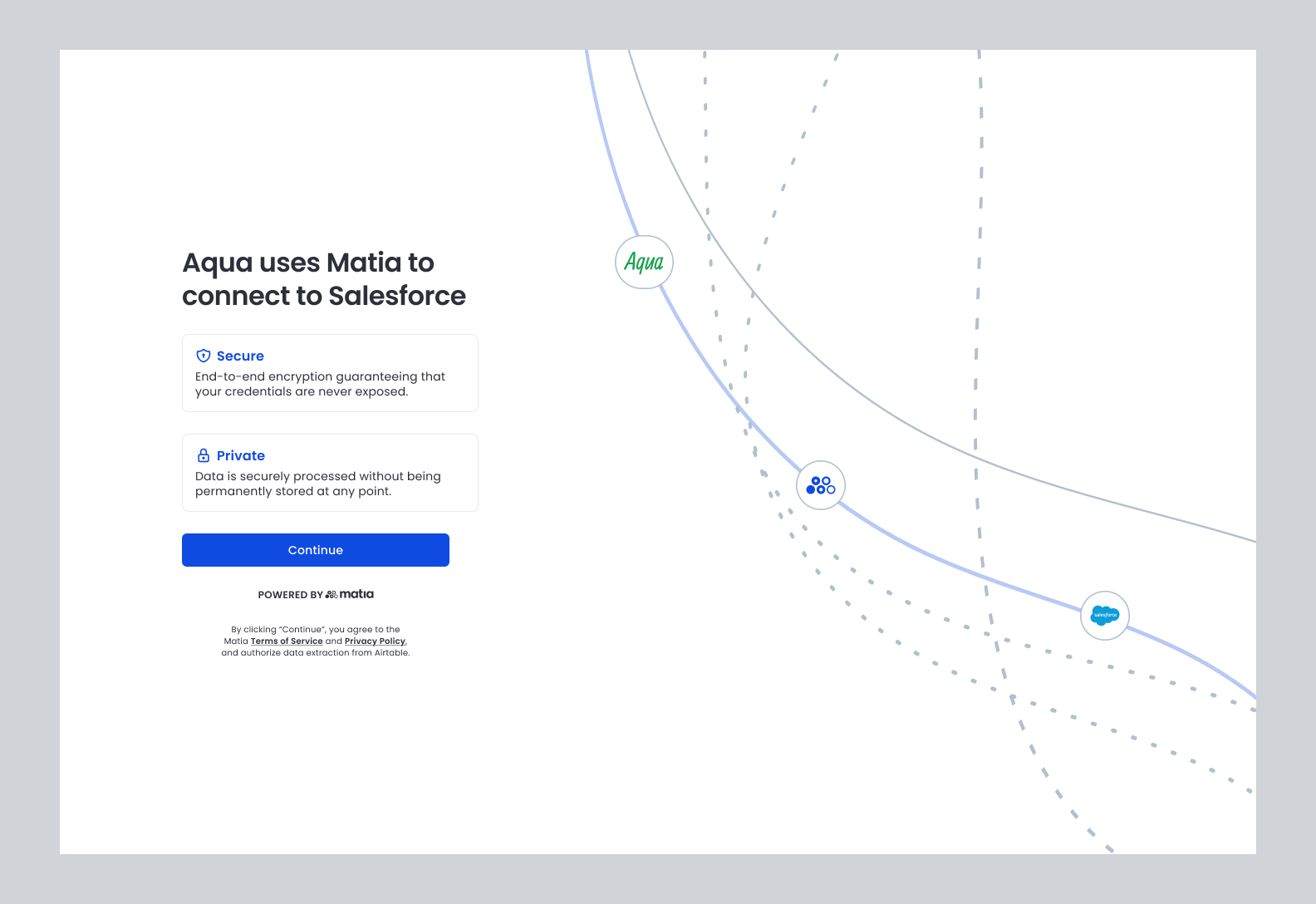 ## How Embedded Integrations Work
1. Your backend creates an integration draft using the Matia API.
2. Matia returns a secure, one-time URL for the embedded setup flow.
3. You embed or redirect users to this URL inside your application.
4. Users authenticate and configure the source.
5. After completion, users are redirected back to your application and the integration is ready to run on Matia.
***
## Creating an Embedded Integration
### Authentication
All requests to the Matia API must be authenticated using an API key.\
API keys are generated and managed in the Matia dashboard and should be securely stored on your backend. Never expose API keys in client-side code.
### Endpoint
Create an embedded integration by calling the `POST /v1/connections` endpoint. This creates an integration draft and returns a URL that launches the embedded setup experience.
```bash theme={null}
POST https://api.matia.io/v1/connections
```
## Required Request Fields
### Destination Configuration
The destination must already exist in Matia before creating an embedded integration.
| Field | Type | Description |
| ------------------- | ------ | ----------------------------------------------------------------------------------- |
| `destinationId` | string | ID of an existing destination in Matia. The destination must be created in advance. |
| `destinationSchema` | string | Name of the destination schema. Must be unique (scope to be clarified). |
### Source Configuration (`sourceConfig`)
| Field | Type | Required | Description |
| ------------- | -------------- | -------- | ------------------------------------------------------------------------- |
| `type` | string | Yes | Identifier of the source type (for example, `shopify`). |
| `name` | string | Yes | Human-readable name for the integration. |
| `owners` | array\ | No | List of user IDs associated with the integration. Can currently be empty. |
| `description` | string | No | Optional description of the integration. |
### Embedded UI Configuration (`connectCardConfig`)
| Field | Type | Required | Description |
| ---------------- | ------- | -------- | ------------------------------------------------------------------------- |
| `redirectUri` | string | Yes | URL the user is redirected to after completing the embedded setup flow. |
| `hideSetupGuide` | boolean | No | If `true`, hides the setup guide in the embedded UI. Defaults to `false`. |
***
## Minimal Example Request
```json theme={null}
{
"destinationId": "12345",
"destinationSchema": "some_schema",
"sourceConfig": {
"type": "shopify",
"name": "Shopify Embedded",
"owners": ["frontegg-id"]
},
"connectCardConfig": {
"redirectUri": "https://app.matia.io/",
"hideSetupGuide": false
}
}
```
> **Default Behavior**
> When creating a new embedded integration, all available streams are enabled by default.
> You can see the integration schema on Matia or by using the [Get integration source schema](/api-reference/integrations/get-integration-source-schema) API Endpoint
***
## Optional Configuration
The following fields are optional when creating an embedded integration. Use them to control replication behavior and schema change handling.
### Replication Frequency (`replicationFrequency`)
Controls how often data is replicated from the source to the destination.
**Type:** string
**Default:** manual
**Supported values:**
* `manual`
* `5`, `10`, `15`, `30`, `60`, `120`, `180`, `360`, `480`, `720`
* `1440`, `4320`, `10080`, `43200`
* `DBT`
* `cron`
### Base Time (`baseTime`)
Specifies the starting timestamp for initial data replication.
**Type:** string (ISO 8601 timestamp)
**Example:**
```json theme={null}
"baseTime": "2025-11-26T09:46:01.246Z"
```
If omitted, Matia determines the default replication start point based on the source type.
### Schema Change Handling (`onSchemaUpdate`)
Controls how Matia responds when schema changes are detected in the source.
Schema changes can include new streams, new or removed columns, or namespace-level changes, depending on the source.
**Type:** string
Supported Values
| Value | Description |
| ------------------------ | -------------------------------------------------------------------------------------- |
| `enableAll` | Automatically enable all newly discovered streams and schema changes. |
| `enableColumnChanges` | Automatically enable column-level schema changes, but not new streams or namespaces. |
| `enableNamespaceChanges` | Automatically enable namespace-level changes (for example, new schemas or datasets). |
| `ignoreAll` | Ignore all detected schema changes and take no action. |
| `pauseConnection` | Pause the integration when a schema change is detected, requiring manual intervention. |
***
## Next Steps
* Embed the returned setup URL in your application
* Handle the redirect to confirm that setup completed successfully
* Use the Connections API to monitor status and trigger syncs
## How Embedded Integrations Work
1. Your backend creates an integration draft using the Matia API.
2. Matia returns a secure, one-time URL for the embedded setup flow.
3. You embed or redirect users to this URL inside your application.
4. Users authenticate and configure the source.
5. After completion, users are redirected back to your application and the integration is ready to run on Matia.
***
## Creating an Embedded Integration
### Authentication
All requests to the Matia API must be authenticated using an API key.\
API keys are generated and managed in the Matia dashboard and should be securely stored on your backend. Never expose API keys in client-side code.
### Endpoint
Create an embedded integration by calling the `POST /v1/connections` endpoint. This creates an integration draft and returns a URL that launches the embedded setup experience.
```bash theme={null}
POST https://api.matia.io/v1/connections
```
## Required Request Fields
### Destination Configuration
The destination must already exist in Matia before creating an embedded integration.
| Field | Type | Description |
| ------------------- | ------ | ----------------------------------------------------------------------------------- |
| `destinationId` | string | ID of an existing destination in Matia. The destination must be created in advance. |
| `destinationSchema` | string | Name of the destination schema. Must be unique (scope to be clarified). |
### Source Configuration (`sourceConfig`)
| Field | Type | Required | Description |
| ------------- | -------------- | -------- | ------------------------------------------------------------------------- |
| `type` | string | Yes | Identifier of the source type (for example, `shopify`). |
| `name` | string | Yes | Human-readable name for the integration. |
| `owners` | array\ | No | List of user IDs associated with the integration. Can currently be empty. |
| `description` | string | No | Optional description of the integration. |
### Embedded UI Configuration (`connectCardConfig`)
| Field | Type | Required | Description |
| ---------------- | ------- | -------- | ------------------------------------------------------------------------- |
| `redirectUri` | string | Yes | URL the user is redirected to after completing the embedded setup flow. |
| `hideSetupGuide` | boolean | No | If `true`, hides the setup guide in the embedded UI. Defaults to `false`. |
***
## Minimal Example Request
```json theme={null}
{
"destinationId": "12345",
"destinationSchema": "some_schema",
"sourceConfig": {
"type": "shopify",
"name": "Shopify Embedded",
"owners": ["frontegg-id"]
},
"connectCardConfig": {
"redirectUri": "https://app.matia.io/",
"hideSetupGuide": false
}
}
```
> **Default Behavior**
> When creating a new embedded integration, all available streams are enabled by default.
> You can see the integration schema on Matia or by using the [Get integration source schema](/api-reference/integrations/get-integration-source-schema) API Endpoint
***
## Optional Configuration
The following fields are optional when creating an embedded integration. Use them to control replication behavior and schema change handling.
### Replication Frequency (`replicationFrequency`)
Controls how often data is replicated from the source to the destination.
**Type:** string
**Default:** manual
**Supported values:**
* `manual`
* `5`, `10`, `15`, `30`, `60`, `120`, `180`, `360`, `480`, `720`
* `1440`, `4320`, `10080`, `43200`
* `DBT`
* `cron`
### Base Time (`baseTime`)
Specifies the starting timestamp for initial data replication.
**Type:** string (ISO 8601 timestamp)
**Example:**
```json theme={null}
"baseTime": "2025-11-26T09:46:01.246Z"
```
If omitted, Matia determines the default replication start point based on the source type.
### Schema Change Handling (`onSchemaUpdate`)
Controls how Matia responds when schema changes are detected in the source.
Schema changes can include new streams, new or removed columns, or namespace-level changes, depending on the source.
**Type:** string
Supported Values
| Value | Description |
| ------------------------ | -------------------------------------------------------------------------------------- |
| `enableAll` | Automatically enable all newly discovered streams and schema changes. |
| `enableColumnChanges` | Automatically enable column-level schema changes, but not new streams or namespaces. |
| `enableNamespaceChanges` | Automatically enable namespace-level changes (for example, new schemas or datasets). |
| `ignoreAll` | Ignore all detected schema changes and take no action. |
| `pauseConnection` | Pause the integration when a schema change is detected, requiring manual intervention. |
***
## Next Steps
* Embed the returned setup URL in your application
* Handle the redirect to confirm that setup completed successfully
* Use the Connections API to monitor status and trigger syncs