> ## Documentation Index
> Fetch the complete documentation index at: https://docs.matia.io/llms.txt
> Use this file to discover all available pages before exploring further.
# Notifications
> Streamline your data operations with Matia's powerful notification system. Learn how to set up, manage, and leverage notifications to stay informed about your integrations, observability, and catalog issues.
## Overview
Matia's notification system provides a comprehensive solution for monitoring and managing issues across your data stack. This guide will walk you through setting up and using notifications effectively.
## Getting Started
To begin using notifications:
1. Navigate to the Notifications page in the sidebar under Settings.
2. Click [Add Notification Integration](/getting-started/notification-integrations) to connect to Slack, PagerDuty, or a webhook endpoint.
3. Once one or more notificaiton integration is connected you're ready to set up your notifications.
## Notification Types
Matia offers three types of notifications:
1. Notification Rules
2. Integration Notifications
3. Custom Monitor Notifications
### Notification Rules
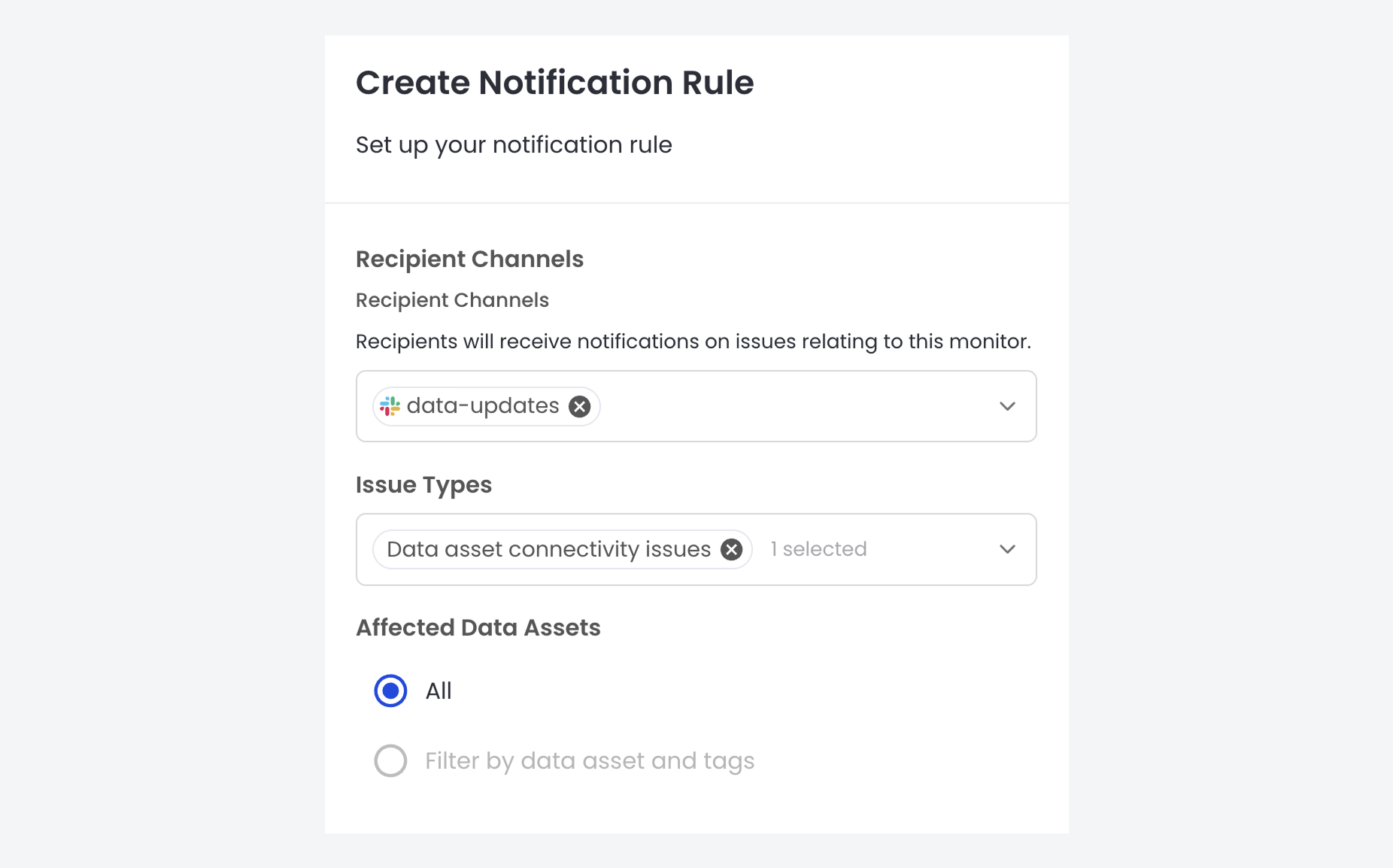
Notification Rules allow you to create customized alert configurations for multiple assets and issue types.
To set up a Notification Rule:
1. Go to the Notifications page under Settings in the main sidebar.
2. Click "New Notification Rule" in the top right corner.
3. Select one or more recipient channels. Make sure to connect at least one [notification integration](/getting-started/notification-integrations) first.
4. Choose the issue types to monitor.
5. Decide whether to apply the rule to all assets or a specific subset.
6. Click Save to activate the rule.
 ### Integration Notifications
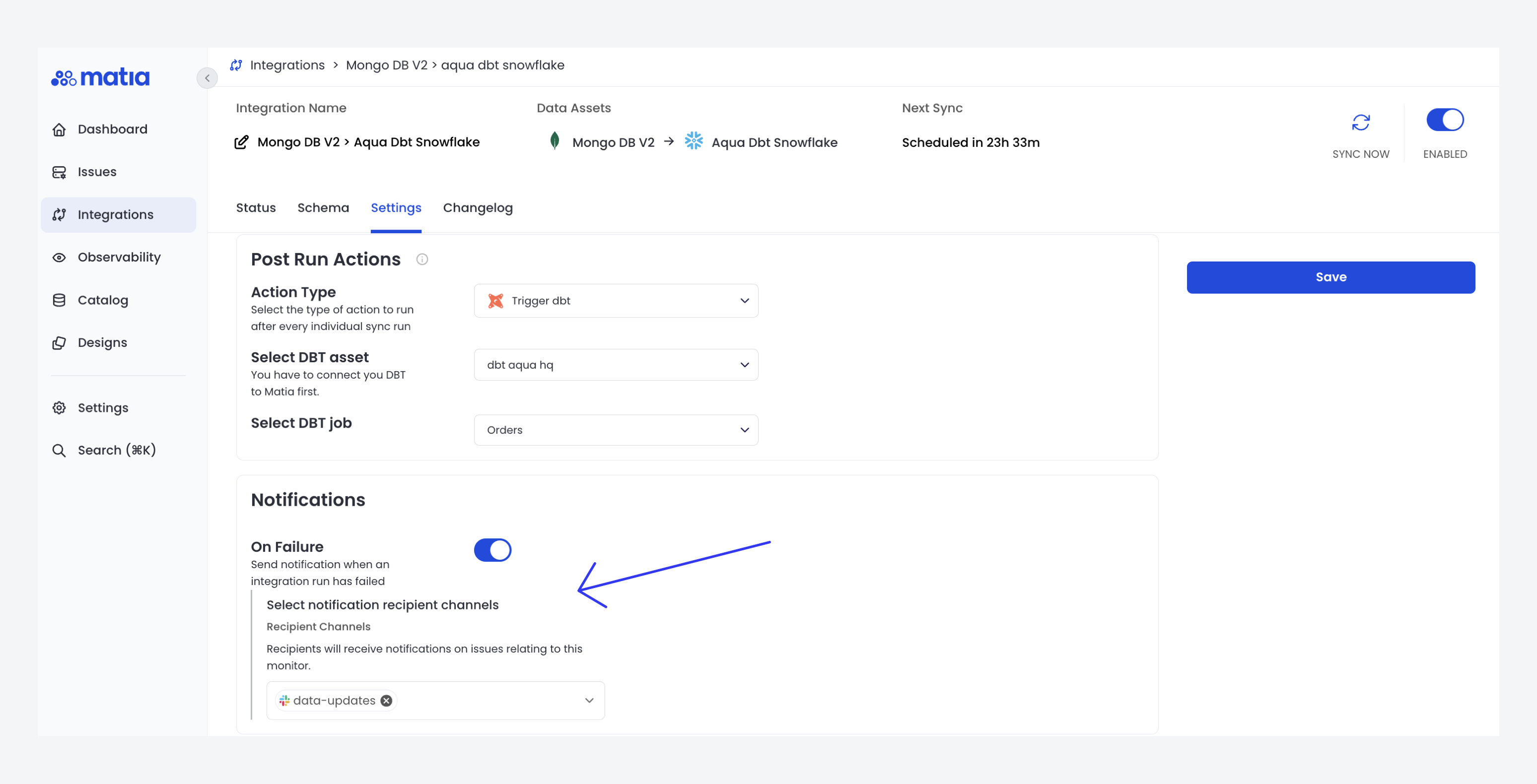
To set up notifications for a specific integration:
1. Navigate to the Settings tab of the desired integration.
2. Locate the Notifications section (at the bottom).
3. Toggle on the "On Failure" option (for sync failures), or the "On Warning" option (for incomplete syncs).
4. Select the desired recipent channel.
5. Click Save to apply changes.
### Integration Notifications
To set up notifications for a specific integration:
1. Navigate to the Settings tab of the desired integration.
2. Locate the Notifications section (at the bottom).
3. Toggle on the "On Failure" option (for sync failures), or the "On Warning" option (for incomplete syncs).
4. Select the desired recipent channel.
5. Click Save to apply changes.
 ### Custom Monitor Notifications
To set up notifications for a custom monitor:
1. Navigate to the specific monitor page.
2. Click on the edit option (pencil icon) at the top right of the right sidebar.
3. Select the desired recipent channel.
4. Click Save to apply changes.
## Slack Notification Features
Matia's Slack integration offers several powerful features:
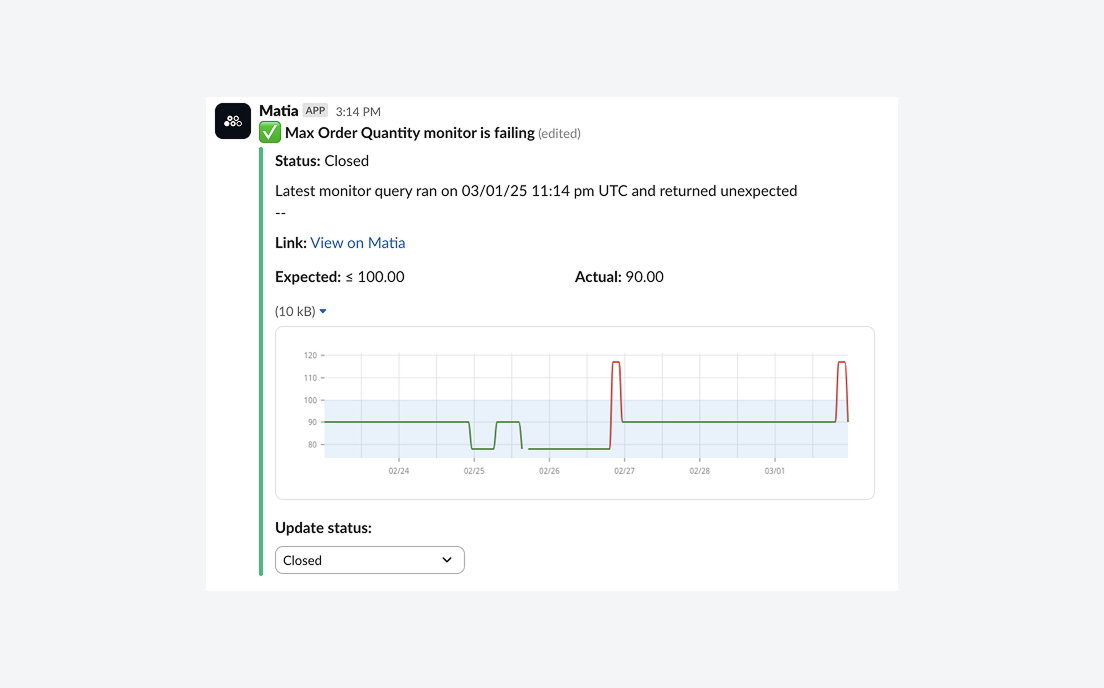
1. **In-Slack Issue Management**: Update issue statuses directly from Slack without accessing Matia.
2. **Real-time Synchronization**: Status updates in Matia are reflected in Slack and vice versa.
3. **Automatic Resolution**: When Matia detects an issue has been resolved, it automatically closes the issue and updates the Slack message.
### Custom Monitor Notifications
To set up notifications for a custom monitor:
1. Navigate to the specific monitor page.
2. Click on the edit option (pencil icon) at the top right of the right sidebar.
3. Select the desired recipent channel.
4. Click Save to apply changes.
## Slack Notification Features
Matia's Slack integration offers several powerful features:
1. **In-Slack Issue Management**: Update issue statuses directly from Slack without accessing Matia.
2. **Real-time Synchronization**: Status updates in Matia are reflected in Slack and vice versa.
3. **Automatic Resolution**: When Matia detects an issue has been resolved, it automatically closes the issue and updates the Slack message.
 ## Viewing and Managing Notifications
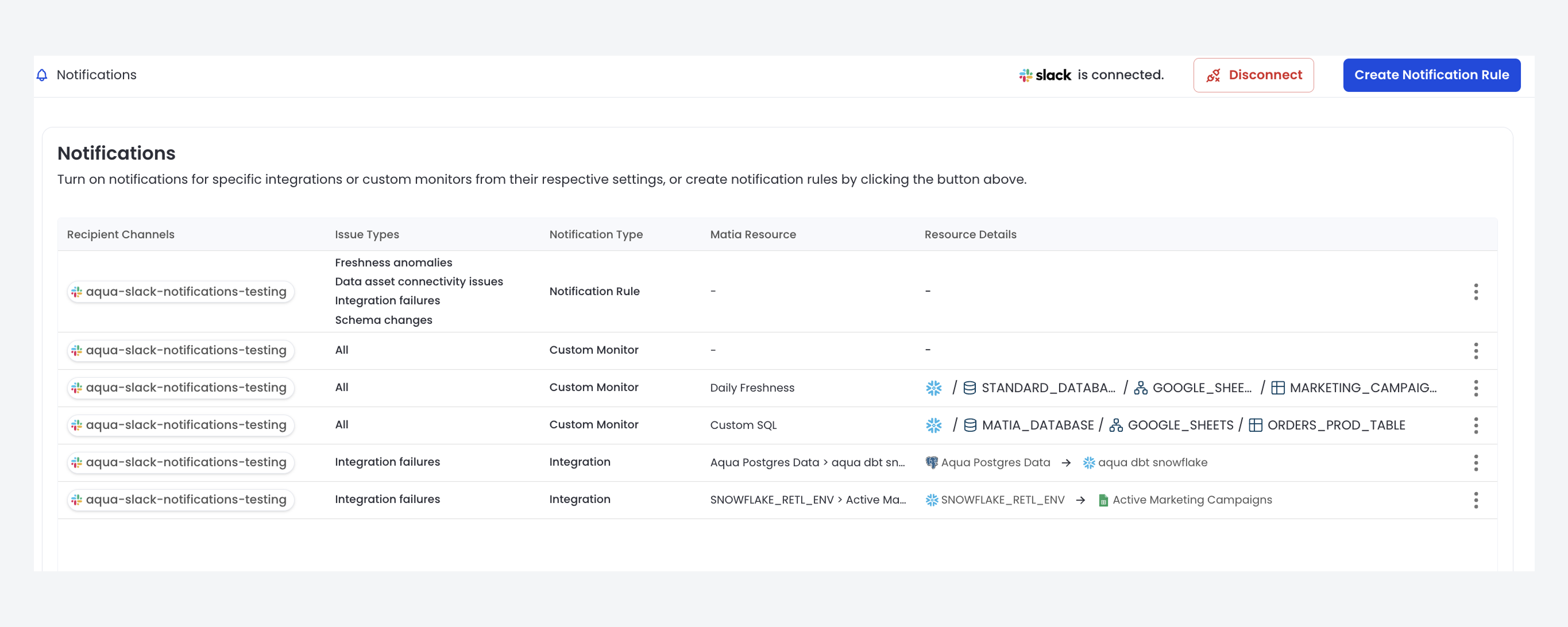
All configured notifications, including integration notifications, can be viewed and managed from the main Notifications page.
## Viewing and Managing Notifications
All configured notifications, including integration notifications, can be viewed and managed from the main Notifications page.